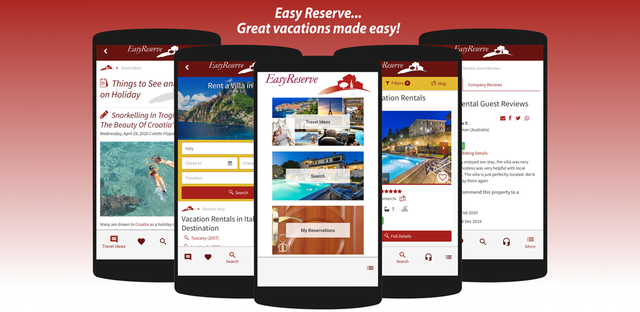
We announced the official launch of our app during the summer of 2020 to help make finding your dream rental and booking, planning, and managing your holiday with Easy Reserve even easier. With our latest update having been launched just this week to further improve your experience booking process with us, we thought it might be helpful to put together a guide on how to use our app and how to get the most out of it.
Offered in English, Italian, Spanish, German, French, and Dutch, the Easy Reserve app allows users to find and book from the 25,000 properties located across 30 different countries on our website, manage their reservation (including making payments, following directions to the property upon arrival, and staying in touch with our customer care team throughout the entire process from booking to stay, and more), browse our blog for things to see and do on their travels, view guest reviews, contact us via email, live chat, and by phone all through the app itself and more. Here's how to navigate the app to use all of these features:
Offered in English, Italian, Spanish, German, French, and Dutch, the Easy Reserve app allows users to find and book from the 25,000 properties located across 30 different countries on our website, manage their reservation (including making payments, following directions to the property upon arrival, and staying in touch with our customer care team throughout the entire process from booking to stay, and more), browse our blog for things to see and do on their travels, view guest reviews, contact us via email, live chat, and by phone all through the app itself and more. Here's how to navigate the app to use all of these features:
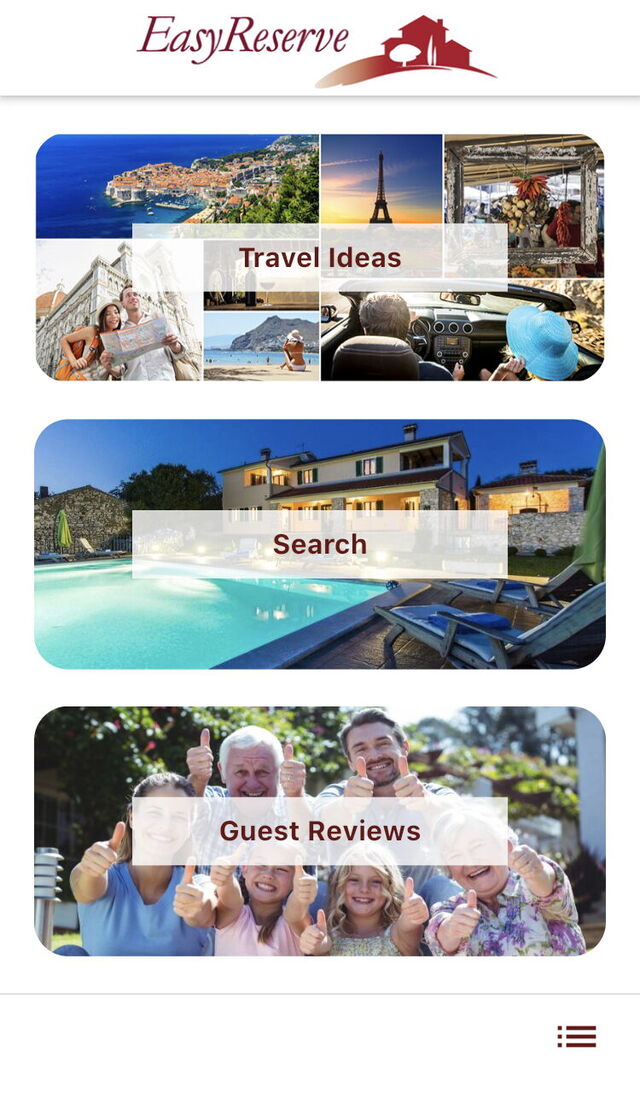
1. When you first open the app, you will immediately reach our landing page and find the three main sections that you can click through to: Travel Ideas, Search, and Guest Reviews
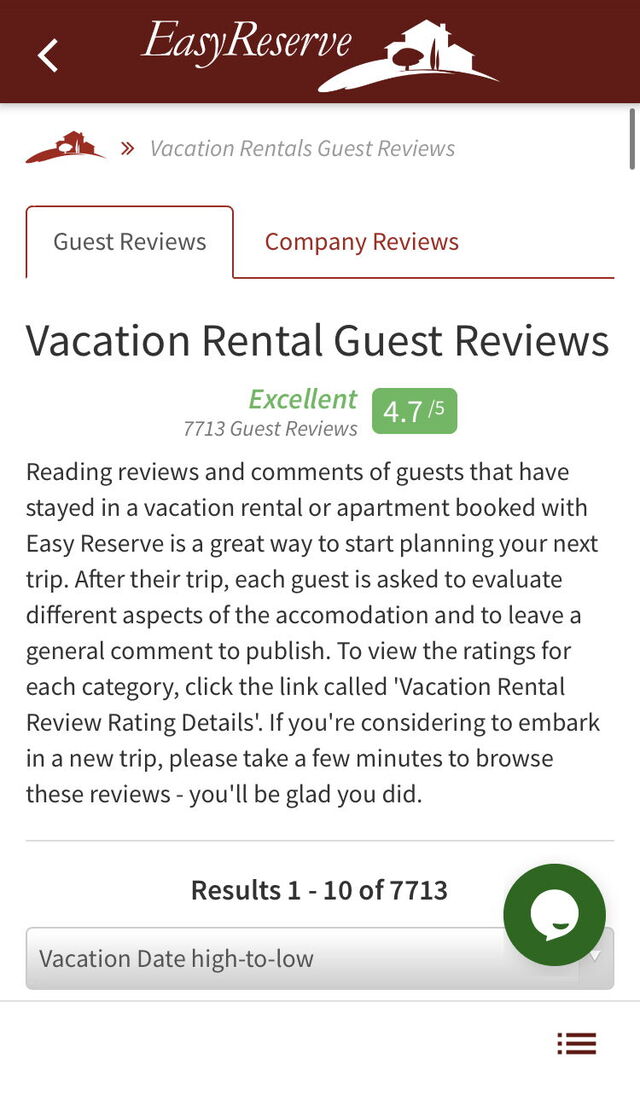
2. If you want to read more about the experience of booking with Easy Reserve or read about particular villas, you can click into Guest Reviews and then view either the Guest Reviews tab for reviews of individual stays and experiences with certain properties or you can click on Company Reviews for those reviews talking about the booking experience with Easy Reserve, in general.
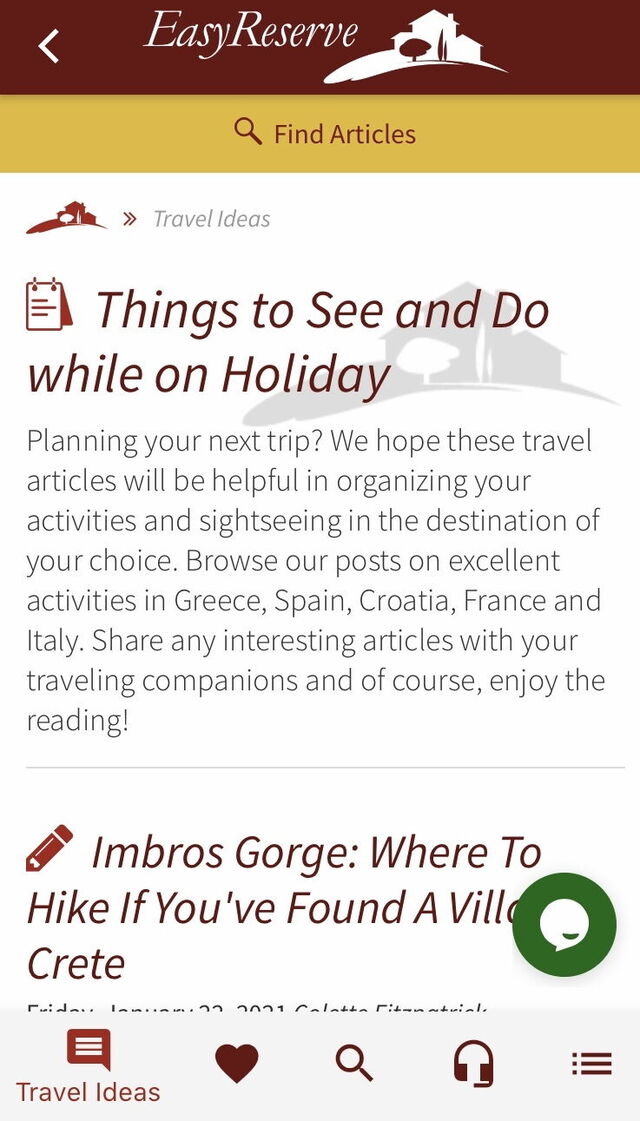
3. If you are looking for travel inspiration or you have found a property already and are looking for things to do in the area, you can click through to the Travel Ideas section, where you will find our blog. The landing page when you click into Travel Ideas will show you our most recently published articles.
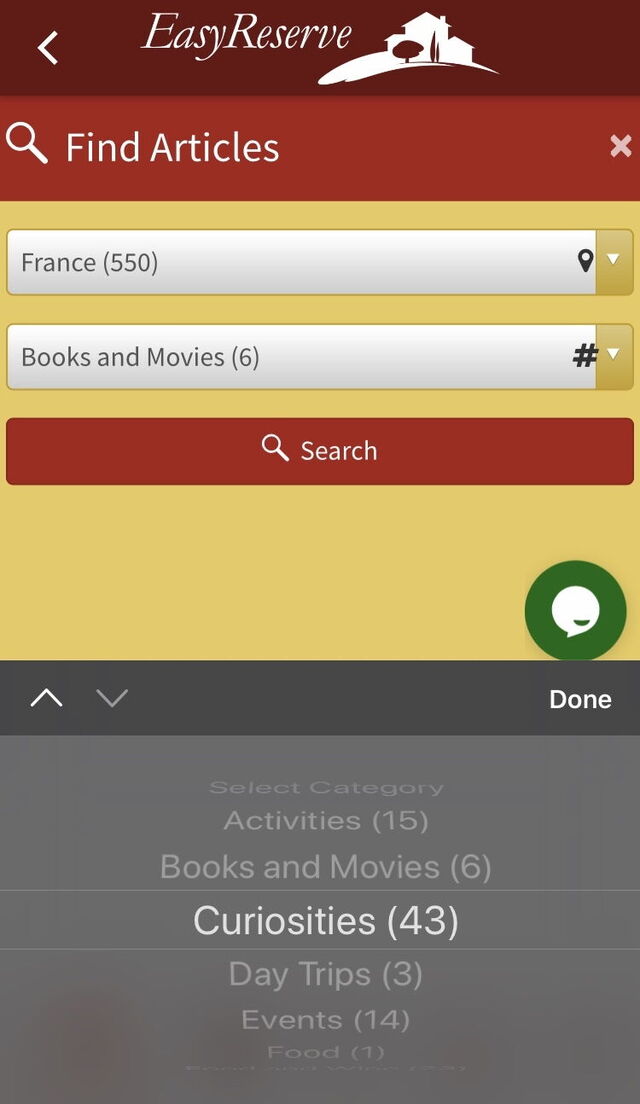
If you have specific interests, you can click Find Articles at the top of the screen and then choose the country about which you want to read (in the pictured example below we have chosen France) and then choose the area of interest about which you want to read (including Food, Books and Movies, Day Trips, Events, Curiosities, and more). Once you have done this, you will be shown all of the articles that match this description on our blog.
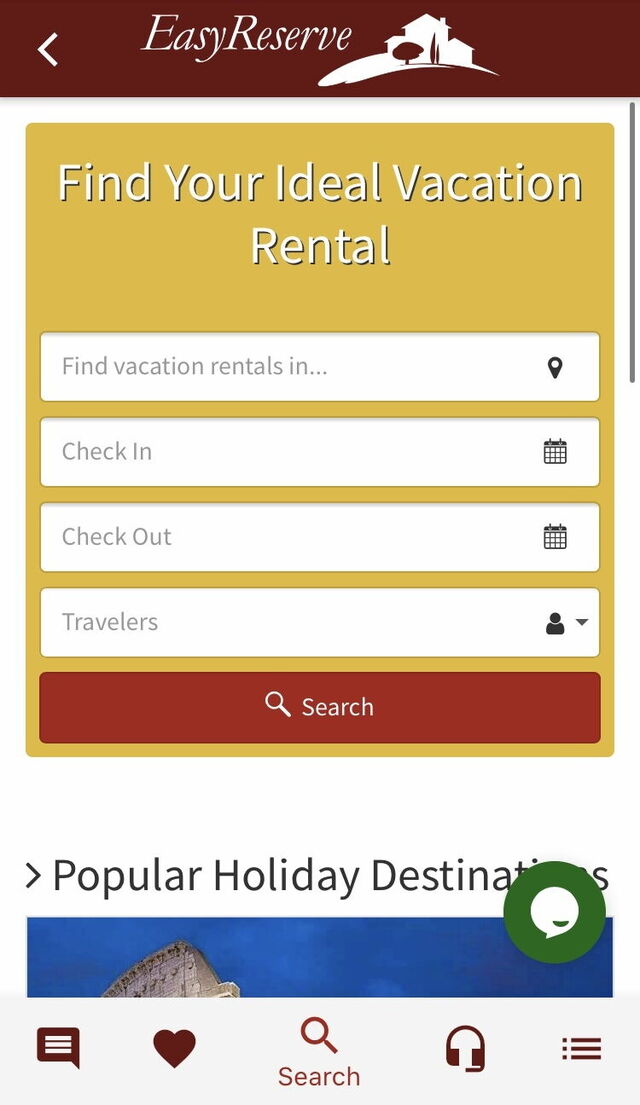
4. Those looking to just get right down to finding their perfect property and planning their dream vacation can click through to the Search option on the home screen of the app. When you do this, you will be brought to our search tool where you can input the location in which you are interested (either general or specific, for example you can put in France for a wider search or look for properties in a particular destination such as Brittany), the dates that you are interested in securing for your holiday, and the number of people who will be travelling with your party. When you then hit the search button you will then see a list of suitable properties with real-time availability and pricing, making the booking process fast and easy.
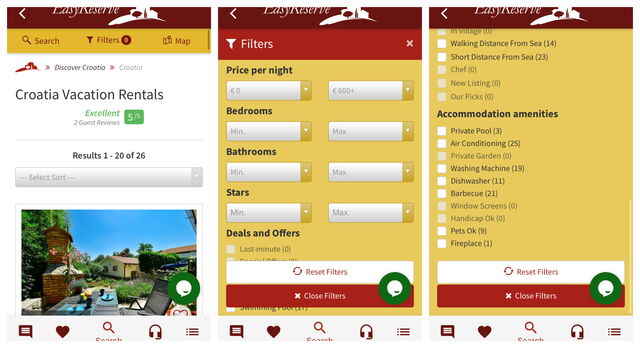
5. If you have more specific requests and needs, you can then use our advanced search features, accessible via the Filters button at the top of the screen after you have done an initial search. Click through to Filters for the list of advanced search options and your results can be narrowed down by specifying the minimum and maximum Price per night, number of bedrooms, bathrooms, and star rating that you are interested in. You can also select more specific features such as swimming pools, internet connection, air-conditioning, pets being allowed, dishwashers, washing machines, and more that you may want to be included. Once you have selected the options that interest you, click on "view xxx results" and you will be presented with a new list of properties in the desired location and on the chosen dates that fit your specific requirements.
6. Once you have clicked through from the home page of the app to any of the sections and are browsing the app, you will see a new taskbar appear at the bottom of the screen with a text bubble icon that brings you to the blog, a heart icon that brings you to your Wish List, a magnifying glass icon that brings you to the search page, an icon with headphones and a mic that brings you to our Contact Us page, and an icon of three horizontal dots and lines that opens the More section - another task bar to the left side of the screen with more options.
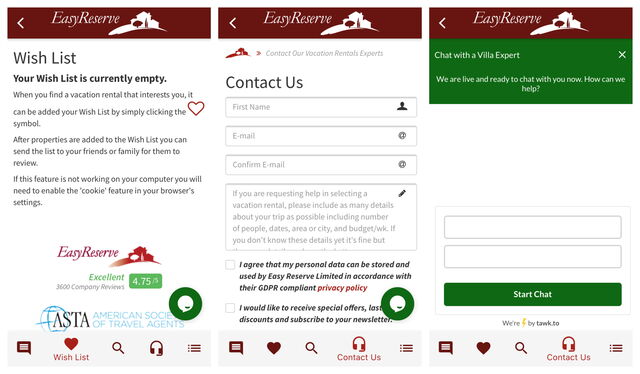
7. The Wish List can be used to store any properties that you are interested in by hitting the heart icon when browsing rental listings. When you later want to review these properties, just head through to the Wish List and you will see your stored favourites. For those looking for the perfect rental and wanting to keep their options open, this is a very useful tool.
8. The Contact Us page will bring you to our contact options: an email contact form that can be filled out and sent to us and a list of our phone numbers (organised by the country from which you may be calling) that can be used to call us, both of which can be done directly through our app.
9. If you prefer to contact us via the written word but you are looking for something a little more instantaneous than email, you can then use the Live Chat feature that is also available through our app by hitting the little round green icon with a speech bubble that is located to the bottom of the right-hand side of the screen.
8. The Contact Us page will bring you to our contact options: an email contact form that can be filled out and sent to us and a list of our phone numbers (organised by the country from which you may be calling) that can be used to call us, both of which can be done directly through our app.
9. If you prefer to contact us via the written word but you are looking for something a little more instantaneous than email, you can then use the Live Chat feature that is also available through our app by hitting the little round green icon with a speech bubble that is located to the bottom of the right-hand side of the screen.
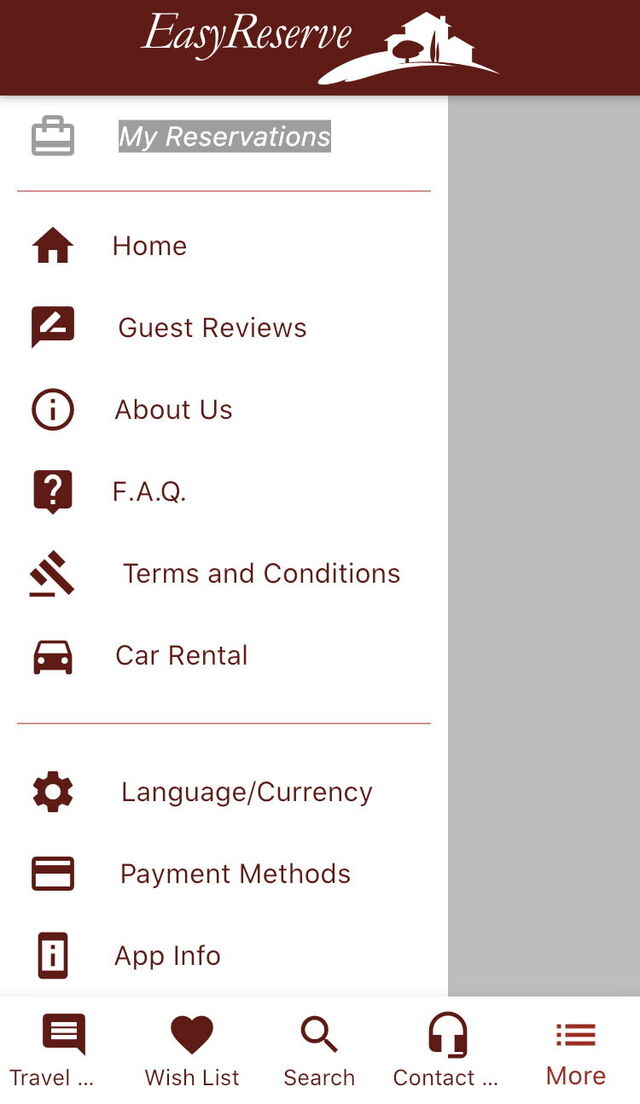
10. For our other features, hit the More icon on the bottom taskbar and you will pull up the left-hand taskbar with options such as My Reservations, Home, Guest Reviews, About Us, F.A.Q., our Terms and Conditions, information about our Car Rental partner service, options to change the app's Language/Currency, information on our Payment Methods, App Info, and more.
11. The My Reservations section at the top of this taskbar will only become active if you have a current booking with us. When you click on this section, you will be able to see the details of your reservation, see the address of the property, see the contact information of the key holder, see the current balance due on the booking (if relevant), manage the reservation (including making payments), and you will be able to find a navigation function that will guide you to the property when you arrive. My Reservations will also take the place of the Guest Reviews section on the app homepage when you have an active booking, making it immediately accessible every time you open the app.
So, as you can see, having the Easy Reserve app makes finding, booking, and planning your next vacation incredibly easy and puts all of the information and tools that you need right at your fingertips and all in one incredibly convenient location! Don't delay and find and book your dream holiday today by downloading the newly updated and improved Easy Reserve app available on Google Play and the App Store.
11. The My Reservations section at the top of this taskbar will only become active if you have a current booking with us. When you click on this section, you will be able to see the details of your reservation, see the address of the property, see the contact information of the key holder, see the current balance due on the booking (if relevant), manage the reservation (including making payments), and you will be able to find a navigation function that will guide you to the property when you arrive. My Reservations will also take the place of the Guest Reviews section on the app homepage when you have an active booking, making it immediately accessible every time you open the app.
So, as you can see, having the Easy Reserve app makes finding, booking, and planning your next vacation incredibly easy and puts all of the information and tools that you need right at your fingertips and all in one incredibly convenient location! Don't delay and find and book your dream holiday today by downloading the newly updated and improved Easy Reserve app available on Google Play and the App Store.